MagickVoice Help Center — Scheduling
Schedules
View every one-time scheduled campaign — calls and messages set to go out at a future date and time. Schedules are created from the Campaign Composer or the Messages page by choosing "Schedule for Later"; this page lists them with their type, status, and planned time, and lets you open one for contact-level outcomes or cancel it before it runs.
Audience: Campaign schedulers · Page address: /app/schedules · Your admin may need to enable this feature
Common tasks
- Review upcoming one-time sends
- Filter by status and type
- Open a schedule for contact outcomes
- Cancel a schedule before it runs
How to use this page
1. Understand what a schedule is
Know what this page tracks so you look in the right place.
- A schedule is a one-time campaign set to go out at a future date and time — calls or messages that have not run yet.
- Schedules are created elsewhere: from the Campaign Composer (AI voice, voice message, or IVR calls) or from Messages (WhatsApp/Email), by choosing Schedule for Later. This page is where you review and manage them.
- Each schedule shows its type (AI Voice, IVR, Static Call, or WhatsApp), its status, and its planned time.
- For repeating sends on a daily, weekly, or monthly cadence, use Recurring schedules instead.
2. Review and filter schedules
Find the scheduled send you care about.
- Open Schedules from the sidebar. Confirm the tenant in the top bar — schedules belong to the tenant they were created in.
- Filter by status — Scheduled, Executing, Completed, Partially Failed, Failed, or Cancelled — using the first dropdown.
- Filter by type — AI Voice, IVR, Static Call, or WhatsApp — using the second dropdown.
- Select Refresh to pull the latest state.
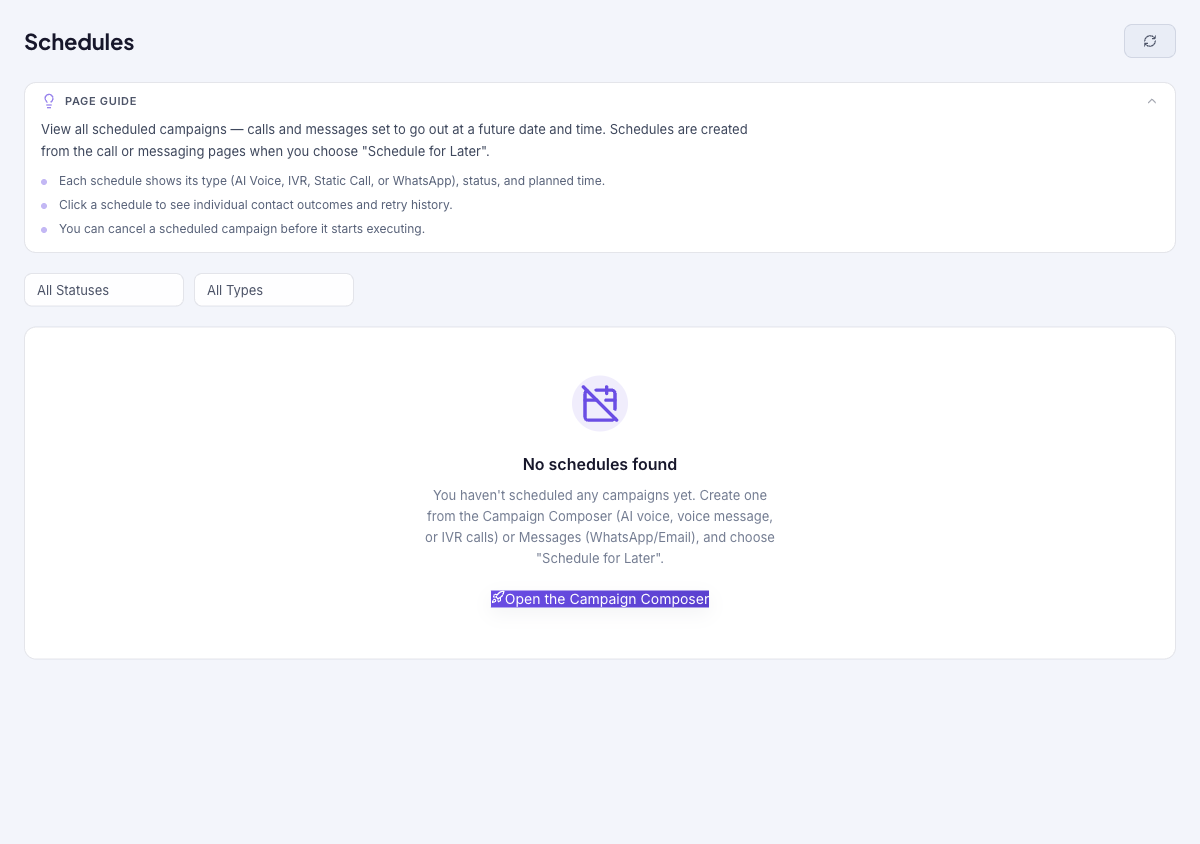
- Before anything is scheduled, the page shows No schedules found with an Open the Campaign Composer shortcut.
3. Open or cancel a schedule
Move from the list to one schedule, or stop it before it runs.
- Select a schedule to open its schedule detail page, where you can see individual contact outcomes and retry history.
- To stop a scheduled campaign that has not started yet, cancel it — you can cancel any time before it begins executing.
- To create a new scheduled send, go to the Campaign Composer and choose Schedule for Later.
Tips and troubleshooting
- Use recurring schedules for repeating operational sends, not one-off campaigns.
- Review upcoming instances after editing a recurring schedule so you know which future sends changed.
- Schedules are created from a call or messaging page — choose "Schedule for Later" there. This page is where you track and manage them afterward.
- You can cancel a scheduled campaign any time before it starts executing.