MagickVoice Help Center — Scheduling
Recurring schedules
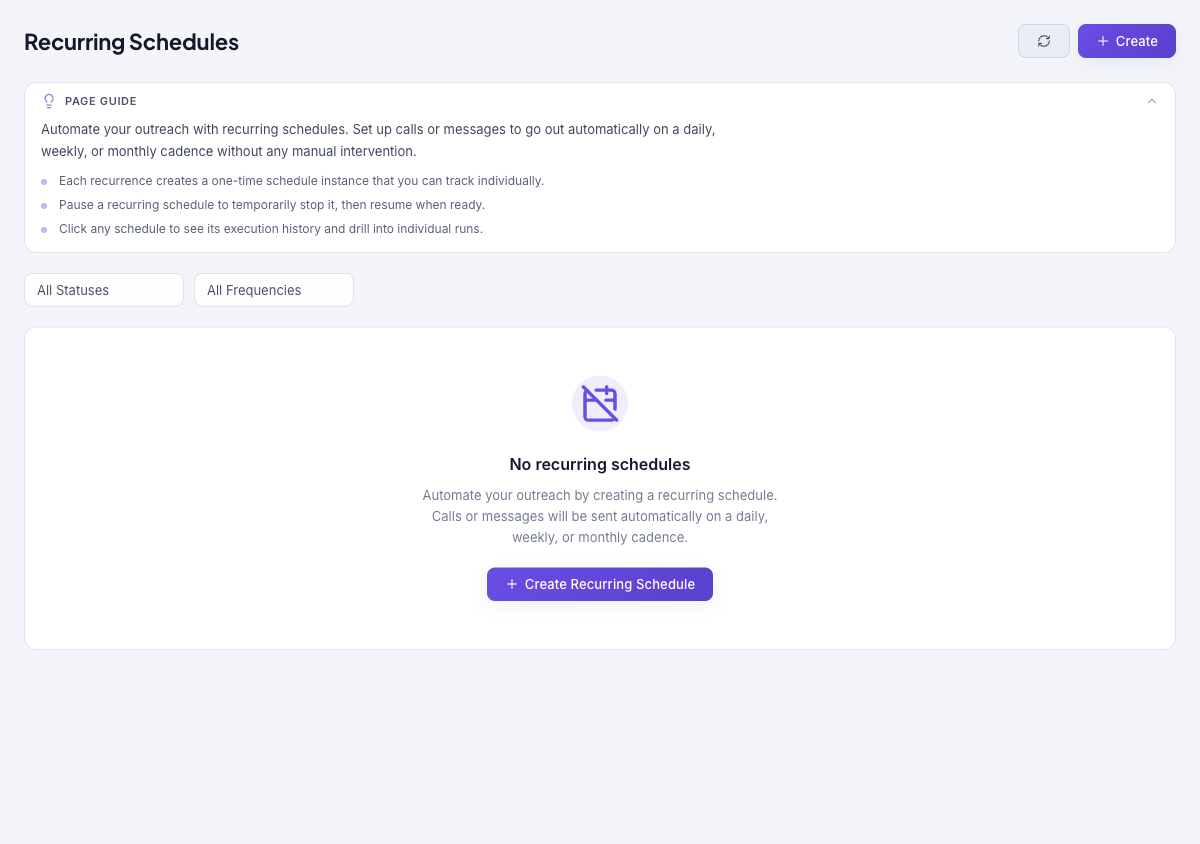
Automate outreach with schedules that repeat on a daily, weekly, or monthly cadence with no manual intervention. Each recurrence creates a one-time schedule instance you can track individually; pause a schedule to stop it temporarily, then resume when ready.
Audience: Campaign schedulers · Page address: /app/recurring-schedules · Your admin may need to enable this feature
Common tasks
- Create a recurring schedule
- Filter by status and frequency
- Open a schedule's execution history
- Pause, resume, or cancel a schedule
How to use this page
1. Understand recurring schedules
Know how repeating schedules work before you build one.
- A recurring schedule sends calls or messages automatically on a daily, weekly, or monthly cadence — no manual step each time.
- Each recurrence creates a one-time schedule instance that you can track individually, so the recurring schedule acts as a template that keeps producing runs.
- You can pause a schedule to stop it temporarily and resume it later, or cancel it permanently so no future instances are created.
- For a single future send rather than a repeating one, use a one-time schedule from the Composer instead.
2. Review your recurring schedules
See what is automated before adding more.
- Open Recurring from the sidebar. Confirm the tenant in the top bar — schedules belong to the tenant they were created in.
- Filter by status (Active, Paused, Cancelled) or by frequency (Daily, Weekly, Monthly) using the dropdowns.
- Each row shows the schedule's name, type, cadence, status, run count, and last run. Select Refresh to update.
- Before you create your first one, the page shows No recurring schedules with a Create Recurring Schedule shortcut.
3. Create or open a schedule
Start a new recurring schedule, or drill into an existing one.
- Select Create (or Create Recurring Schedule on the empty state) to open the builder — see New recurring schedule.
- Select any schedule's row to open its recurring schedule detail, where you can read its configuration and execution history and drill into individual runs.
- From the detail page you can Edit, Pause or resume, or Cancel the schedule.
Tips and troubleshooting
- Use recurring schedules for repeating operational sends, not one-off campaigns.
- Review upcoming instances after editing a recurring schedule so you know which future sends changed.
- Each recurrence creates a one-time schedule instance — so a recurring schedule is a template that keeps producing runs on its cadence.
- Pause a recurring schedule to stop it temporarily without losing its configuration, then resume when you are ready.