MagickVoice Help Center — Phone Menus
Menu activity
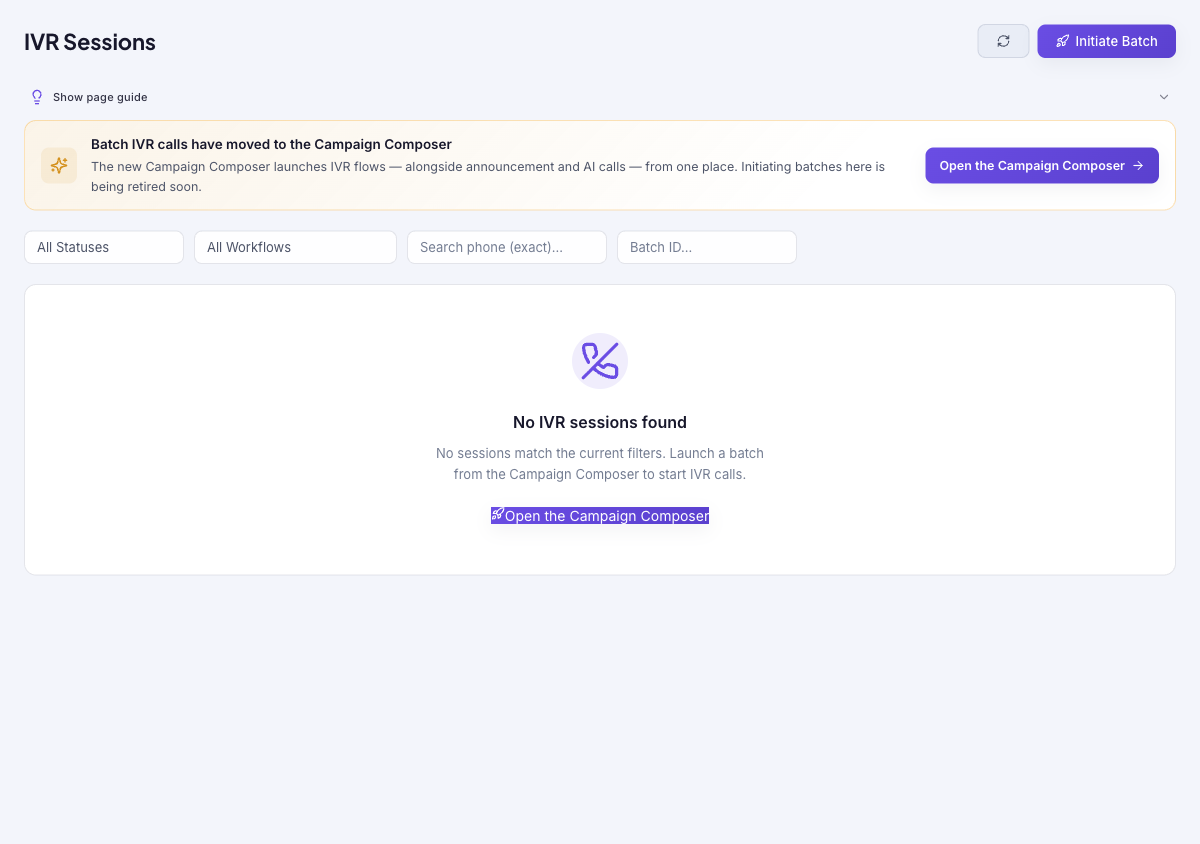
Review IVR call sessions — one session per phone call through a workflow — and filter them by status, workflow, phone number, or batch to see how callers moved through your menus.
Audience: IVR operators · Page address: /app/ivr-sessions · Your admin may need to enable this feature
Common tasks
- Filter sessions by status or workflow
- Search for one exact phone number
- Filter by batch ID
- Open a session to inspect the caller path
How to use this page
1. Find and review IVR sessions
Locate the right call sessions and understand how callers moved through a menu.
- Open Menu Activity. Use the status filter (Queued, Ringing, In Progress, Completed, Failed, No Answer, and more), the workflow filter, Search phone (exact) with the full country-code number, or Batch ID to narrow the list.
- Active sessions auto-refresh about every 10 seconds, so you can watch progress live; use Refresh to update immediately.
- Open a session to inspect the caller path — the steps taken, keypad input, and where the call ended — when you need to investigate an abandoned or misrouted call.
- To launch new IVR calls, use Open the Campaign Composer. Batch initiation has moved there and running batches from this page is being retired.
Tips and troubleshooting
- Use short labels for IVR steps so the canvas remains readable as the menu grows.
- Test no-input and invalid-input paths; they are the most common places callers get stuck.
- The phone search is an exact match — enter the complete number with its country code, for example +919876543210.
- Session data reflects real caller activity and may include customer phone numbers; treat it as customer data and do not copy it into unapproved channels.