MagickVoice Help Center — Campaigns
All campaigns
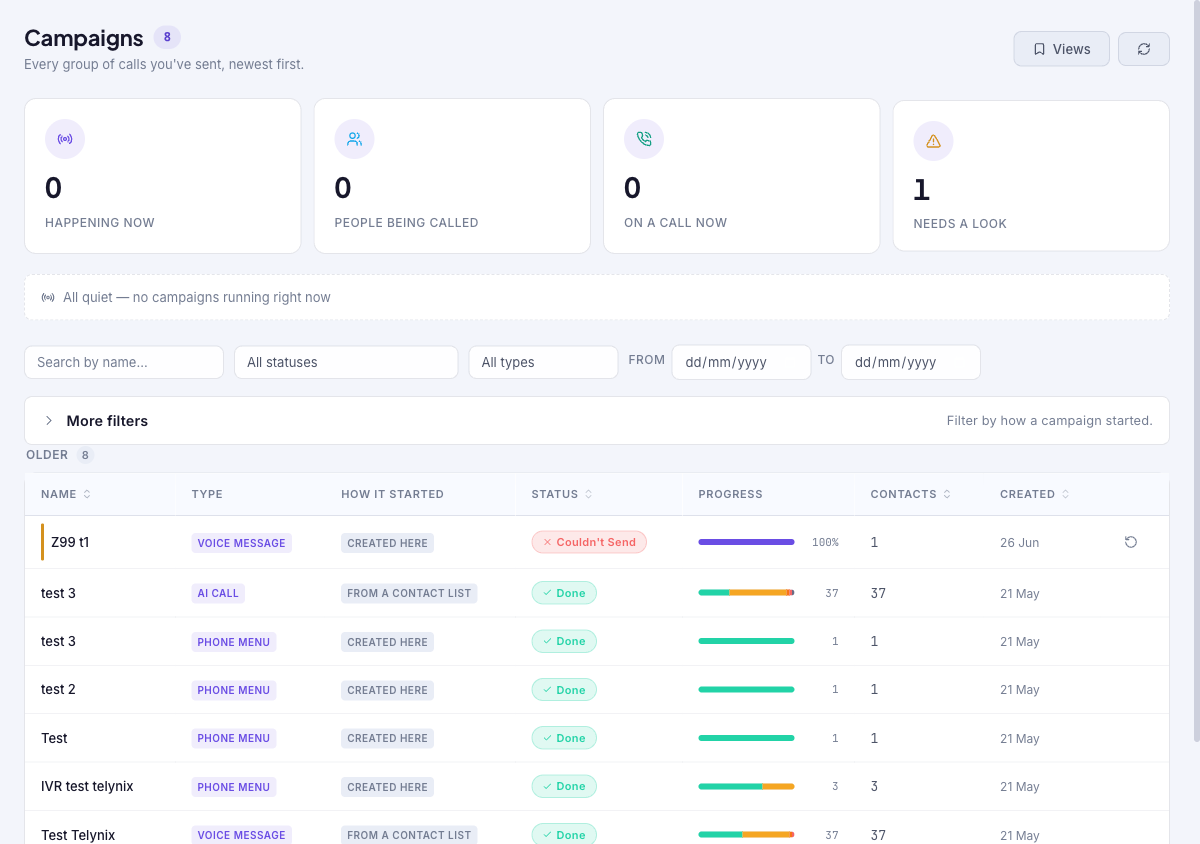
Track every group of calls you have sent, newest first. Live tiles show what is happening now and what needs a look; the table lists each campaign with its type, how it started, status, progress, contact count, and created date. Open any campaign for its full per-recipient breakdown, stop queued calls, or retry failed calls.
Audience: Campaign managers · Page address: /app/bulk-dispatch-jobs · Your admin may need to enable this feature
Common tasks
- Scan the live status tiles
- Search and filter campaigns
- Open a campaign's detail and run history
- Stop remaining queued calls
- Retry calls that didn't connect
How to use this page
1. Understand this page
Know what this page tracks so you can find and monitor your sends.
- Every row is a campaign — one group of calls you sent, whether a voice message, AI call, or phone menu — listed newest first.
- The tiles across the top summarize live activity: Happening now, People being called, On a call now, and Needs a look (campaigns that need attention).
- When nothing is running, the page reads All quiet — no campaigns running right now.
- Confirm the tenant in the top bar — campaigns belong to the tenant they were sent in.
2. Scan live status
Get a quick read on what is running before you dig into any one campaign.
- Read the tiles at the top. Needs a look is a button — select it to filter the table straight to campaigns that need attention.
- The How it started column shows whether a campaign was Created here (in the Composer) or came From a contact list.
- The Progress column shows a breakdown of outcomes (for example connected, no answer, busy, failed, voicemail) with a total.
3. Search and filter
Narrow a long list to the campaigns you care about.
- Use Search by name to find a campaign by its name.
- Filter by status (Waiting, In progress, Sending, Done, Done — some didn't connect, Couldn't send, Stopped), by type (Voice message, AI call, Phone menu, WhatsApp, Telegram), or by a From / To date range.
- Use More filters to filter by how a campaign started, and the column headers (Name, Status, Contacts, Created) to sort.
- Refresh re-fetches the latest, and Views switches how the list is presented.
4. Open a campaign
Move from the list to the full detail of one campaign.
- Select a campaign's row to open its campaign detail page — its summary, configuration, outcome breakdown, and per-call table.
- For a running campaign or one with queued calls, use Stop remaining calls on the detail page to cancel any pending calls that have not yet started.
- For a campaign with failures, use the row's Try the calls that didn't go through action to retry the recipients that didn't connect.
- To start a new campaign, go to New campaign.
Tips and troubleshooting
- Review campaign settings before dispatch because recipient mistakes can be expensive to unwind.
- Use analytics after delivery to compare completion, failures, and response trends before sending the next batch.
- The "Needs a look" tile filters straight to campaigns that need attention — start there after a big send.
- Campaigns only show for the tenant they were sent in; confirm the tenant in the top bar before assuming a campaign is missing.