MagickVoice Help Center — Voice
Create or edit a call script
Build a new AI call script from a template or blank canvas, or edit an existing one, using the same structured editor of sections for instructions, guardrails, silence handling, languages, integrations, and captured outcomes.
Audience: Script authors · Page address: /app/prompts/new
Common tasks
- Start from a template or blank canvas
- Write agent instructions and the opening message
- Set rules, hand-off, silence, and languages
- Preview, test, and save
How to use this page
1. Choose a starting point
Begin with structure that matches the call type, whether the script is new or an edit.
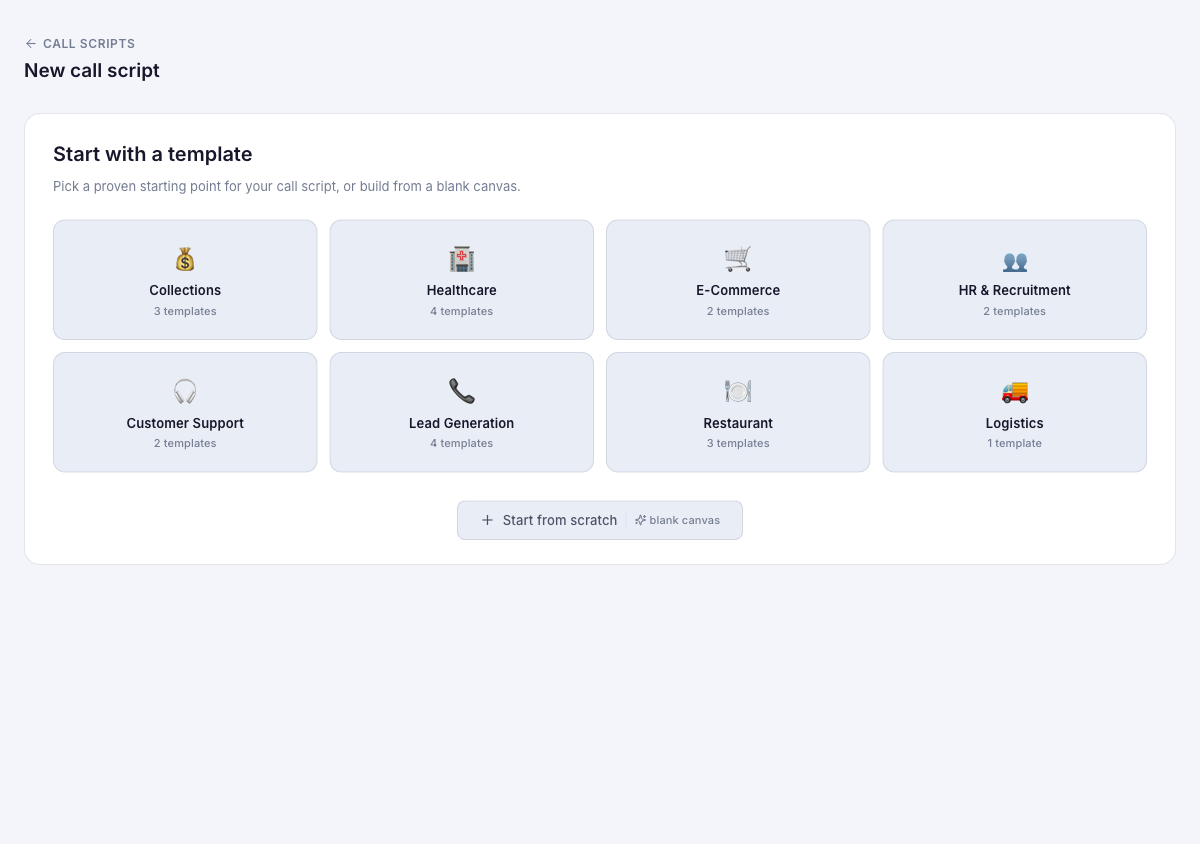
- For a new script, select Create call script from Call Scripts, then either pick an industry category and template or select Start from scratch (blank canvas).
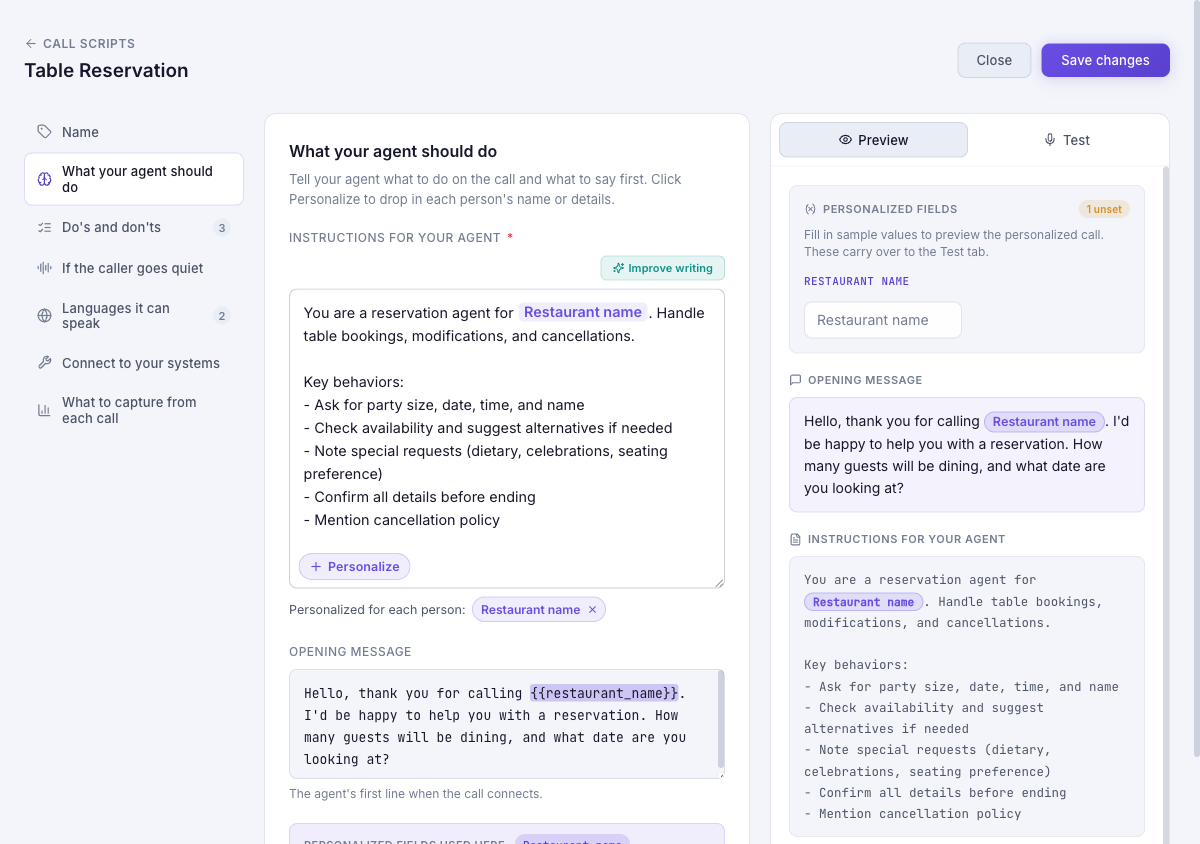
- To change an existing script, select Edit on its card. The editor opens titled with the script name and shows a Save changes button instead of Save script; new scripts show New call script and a Save script button.
- Work through the left-hand sections in order. Name and What your agent should do carry a needs-attention marker until they are complete, and the save button stays disabled until the required information is present.
2. Define how the agent speaks and behaves
Give the agent specific, usable instructions rather than a vague topic.
- In Name, give the script a name you can find later. This field is required.
- In What your agent should do, write Instructions for your agent — the role, objective, boundaries, and desired outcome. Use Improve writing for a refinement suggestion, and Personalize to insert per-recipient details such as a name into the text.
- Add the Opening message: the first line the agent speaks when the call connects. Personalized fields you insert appear as chips in both the instructions and the opening message.
- In Do’s and don’ts, add concrete rules the agent must follow, and under When to hand off to a person, list the situations that should pass the call to a human.
3. Tune silence, languages, and captured data
Set the operational behavior that keeps calls on track.
- In If the caller goes quiet, enable Silence handling to reveal the Directive (what the agent says when the caller is quiet), Threshold in seconds before nudging, and Max nudges before ending the call. Note that the highest voice-quality tier does not support nudging, so these settings have no effect there.
- In Languages it can speak, check the languages to make them selectable at call time. Checking a language only makes it available — the agent speaks another language only if your instructions explicitly tell it to (for example, “Speak in Tamil”).
- Use What to capture from each call to add specific details to note from every conversation, such as whether the caller agreed to pay.
- Use Connect to your systems when the agent must look up information mid-call. This section, along with Preview and Test, requires you to save the script first, so save once the required sections are complete and continue editing.
4. Preview, test, and save
Confirm the script behaves as intended before using it live.
- Use the Preview tab to inspect the rendered opening message and instructions. For a saved script, fill the personalized sample fields so the preview shows realistic values.
- Switch to the Test tab to exercise the script on a real test call. Both Preview detail and Test require the script to be saved first.
- Select Save script (new) or Save changes (edit) once the preview matches the intended behavior. For a significant edit, run the revised script on a single call before broad use.
- Use Close to leave the editor. Closing before saving discards the unsaved draft, so save a working version before a large experimental change.
Tips and troubleshooting
- Open the detail page after a call to review transcript, outcome, recording, and follow-up options in one place.
- When comparing calls, use status and date filters first, then open only the calls that need action.
- New and edit use the same editor and the same sections; an edit changes the reusable script, so assume it affects future calls and campaigns that select it.
- Keep instructions concrete: say what the agent should do, what it must not do, and when it must hand off. That is more reliable than a short topic-only prompt.
- If you need to preserve the original behavior, export the script before a major rewrite or create a separate script for the new use case.