MagickVoice Help Center — Voice
Calls
Monitor AI call activity, narrow the list to the records that matter, export it when needed, and start one-off calls.
Audience: Voice operators · Page address: /app/calls
Common tasks
- Filter AI call records
- Search for one exact phone number
- Export the visible data
- Start a single AI call
How to use this page
1. Find the calls you need
Reduce a long call list to a precise operational view.
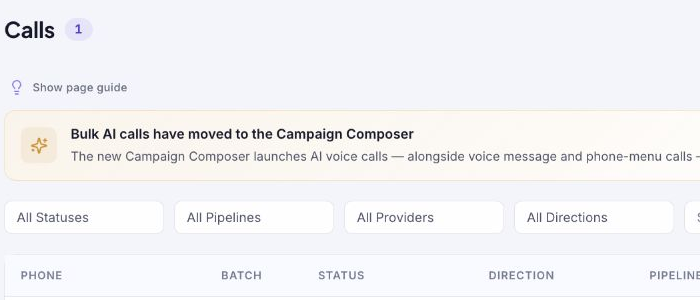
- Open Voice, then Calls. The table shows each AI call with its status, direction, pipeline, provider, duration, talk time, recording indicator, and time.
- Use All Statuses to isolate outcomes such as Queued, Ringing, In Progress, Completed, Failed, No Answer, Busy, or Switched Off.
- Use pipeline, provider, and direction filters when you need to compare the same type of call. The phone search is an exact match, so enter the complete number with its country code.
- Use Filter by Batch ID when investigating a known batch. Use the Duration or Talk Time column headings to sort the resulting table.
- Check the outcome text and recording indicator before continuing with any follow-up. Select the conversation follow-up control only when you are ready to continue work on that contact.
2. Export or choose the right calling workflow
Use this page without accidentally starting a bulk job from the legacy area.
- Apply the filters first; Export CSV exports the data currently represented by your filtered view.
- Use Customize export columns to decide which call fields are included before exporting.
- Select New Call for one AI-assisted outbound call. Complete its required recipient, caller ID, prompt, and AI quality fields before the call button becomes available.
- For a list of recipients, use Open the Campaign Composer in the notice. The page explicitly marks Bulk Calls here as a retiring workflow.
Tips and troubleshooting
- Open the detail page after a call to review transcript, outcome, recording, and follow-up options in one place.
- When comparing calls, use status and date filters first, then open only the calls that need action.
- A completed status means the call finished; it does not by itself indicate the business outcome. Review the call context before marking the work done.
- Do not use the exact-number search with a partial local number. Include the plus sign and country code to avoid an empty result.