MagickVoice Help Center — Voice
Call scripts
Create, reuse, export, edit, and remove the AI call scripts that tell a voice agent what to say and do on the phone.
Audience: Script authors · Page address: /app/prompts
Common tasks
- Create a call script
- Import a script from JSON
- Edit an existing script
- Export or delete a script
How to use this page
1. Manage a reusable call script
Keep voice-agent behavior organized and ready for safe use in calls and campaigns.
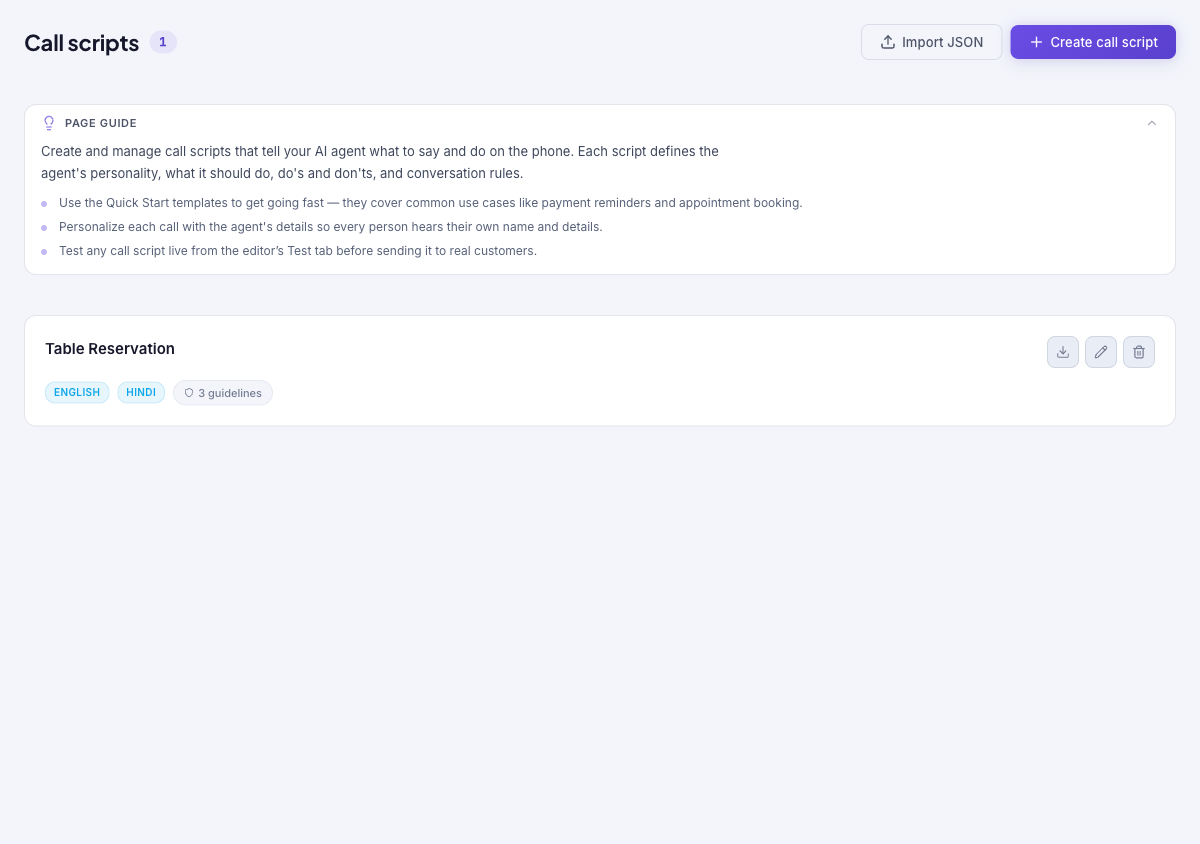
- Open Voice, then Call Scripts. The count beside the heading shows how many scripts exist; each card lists the script name, its enabled language chips, and its guideline count.
- Select Create call script to build a new script from a template or a blank canvas. Select Edit on an existing card to open the same editor for that script.
- Use Import JSON only with a script file you have reviewed. Use Export as JSON on a card to save a script definition for transfer or backup.
- Use Delete on a card only when the script is no longer needed. Confirm it is not selected by a live call or campaign before removing it.
Tips and troubleshooting
- Open the detail page after a call to review transcript, outcome, recording, and follow-up options in one place.
- When comparing calls, use status and date filters first, then open only the calls that need action.
- The page guide points to the Quick Start templates for common use cases and reminds you to test a script from the editor’s Test tab before using it with real customers.
- Language chips reflect which languages the script enables; the instructions still have to tell the agent which language to actually speak.
- Export a script before a major rewrite when you want an easy rollback reference.